Speed — Simple — Secure
Drops
Cross-platform file transfer for sending and receiving data instantly over LAN or the Internet — no account required, no ads.

LAN · Internet · Desktop & mobile
2
Transfer Modes (LAN + Internet)
6+
Platforms (via Flutter)
0
Accounts needed — open and use
Designed for Real Speed
No cables, no heavy cloud services — just pick the mode that fits your situation.
-
01
Local LAN
On the same Wi-Fi, transfer directly between devices — high speed, low latency.
-
02
Internet (Relay)
Pair using a simple code, send files to remote recipients via a secure relay channel.
-
03
Cross-platform
Universal Flutter app for iOS, Android, Windows, macOS, Linux, and Web.
App preview
The same focused, dark UI on desktop and phone — local radar, quick actions, and clear status at a glance.
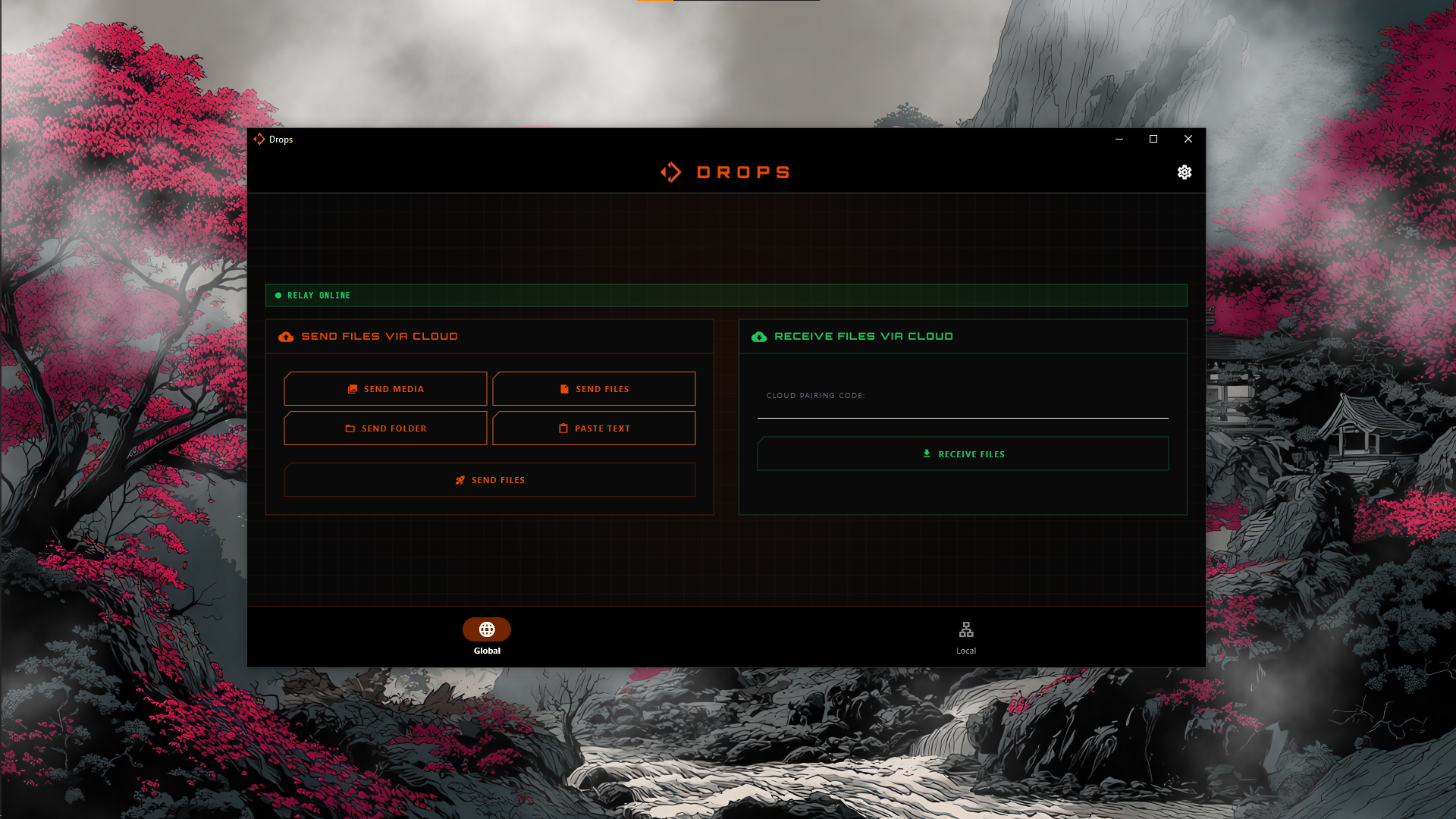
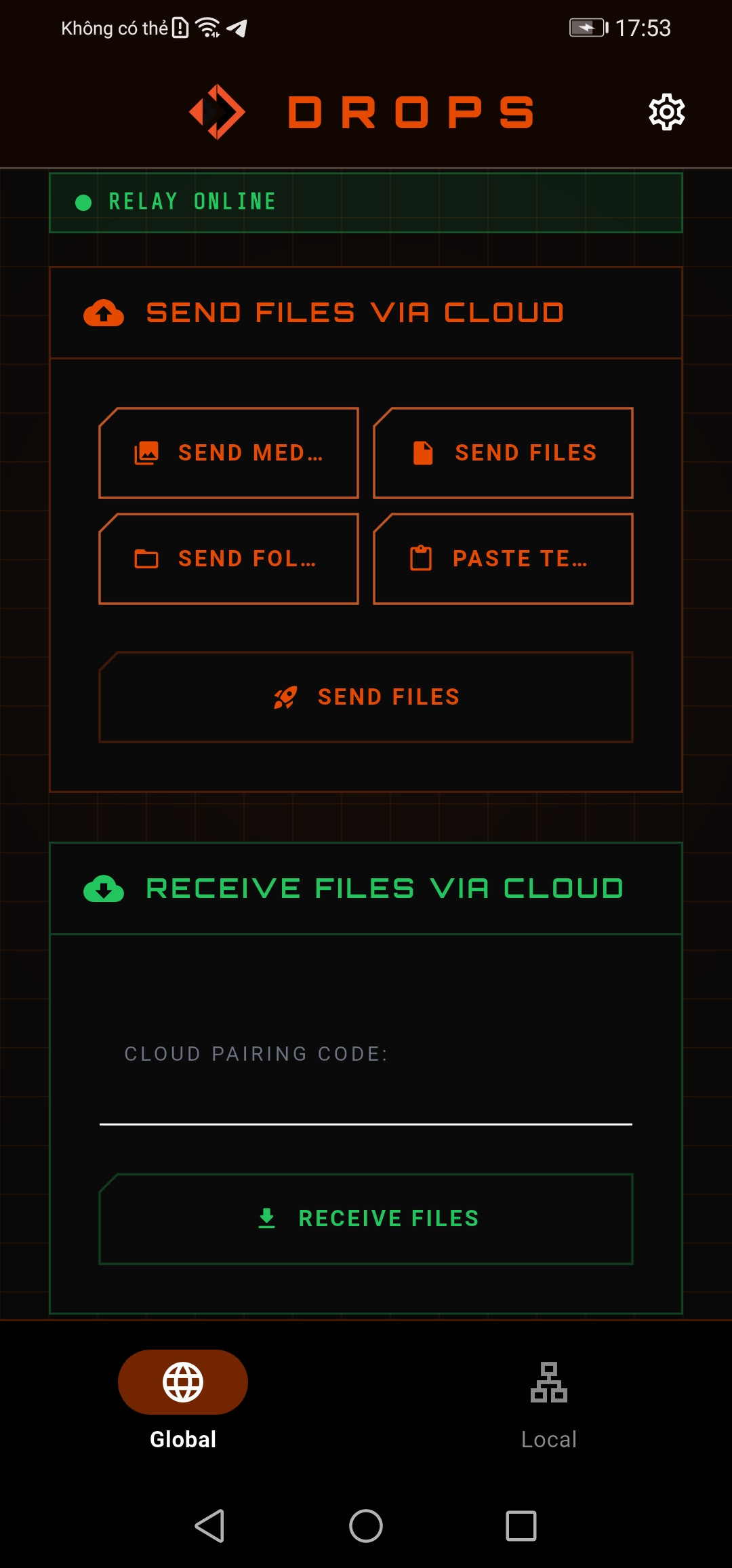
How it Works
Three simple steps — whether you're sending over LAN or Internet.
-
1
Open Drops on both devices
Use the same Wi-Fi for LAN; or connect both to the Internet for relay mode.
-
2
Select Send/Receive and Pair
LAN: pick a device from the list. Internet: enter the 6-digit pairing code.
-
3
Track Progress
Monitor percentage and session status; files are saved to your chosen folder.
Drops Two modes, one flow
At home or in the office, prioritize LAN. When on different networks, switch to Internet — same app, same intuitive language.
- LAN Discovery
- 6-digit Pairing
- Real-time Progress
LAN
Direct local network transfer — perfect for large files and batches.
Internet
Controlled Relay — connectivity when devices aren't on the same Wi-Fi.
Mode-specific Details
Switch tabs to see the benefits and practical considerations of each transfer type.
LAN — Maximum speed within your home
- Zero internet bandwidth consumption for large files.
- Ultra-low latency, ideal for quick edits between PC and phone.
- Requires both devices on the same network and visible to each other.
Internet — When devices are far apart
- Pair via a short code, no shared Wi-Fi required.
- Data flows through a secure relay — updated based on your backend.
- Transfer speed depends on network quality and server configuration.
One App, Multiple Devices
- Flutter ensures UI and logic consistency across mobile and desktop.
- Send from Windows to Android or vice-versa seamlessly.
- Check the download table to select the correct artifact for your OS.
What Users Say
Real feedback from people using Drops every day.
Get Drops
Cards marked Recommended for you are based on your browser's OS report.
Update actual URLs in js/config.js.
macOS
Linux
Android
iOS
Web (No Install)
Samsung TV (TizenOS)
Coming Soon
Android TV
Coming Soon
Chrome Extension
Coming Soon
Frequently Asked Questions
Answers to common questions about using Drops.
Does LAN mode require Internet?
No. LAN mode transfers purely within your local network; you only need devices connected to the same Wi-Fi or router.
Does Internet mode store my files on a server?
LAN: No. Data travels directly between your devices and never touches our servers.
Internet (Relay): Only temporarily. Data is encrypted and cached in chunks for the duration of the transfer to facilitate the connection. Once the transfer is complete, canceled, or the session expires, the backend purges all data — files are not kept for long-term storage.
Why does Android ask for "All files access"?
To allow selecting and saving any file type (not just media). Detailed info is in our Privacy Policy.
I downloaded the wrong version — what should I do?
Please return to the download grid above and select the correct platform for your specific operating system.
Share Your Feedback
Found a bug? Have a feature idea? Let us know — your feedback helps us improve Drops.
Category (optional)
0 / 1000
Thanks! Your feedback has been sent successfully. 🎉
Contribute & Follow
Report bugs, suggest features, or build from source — everything happens on GitHub.